


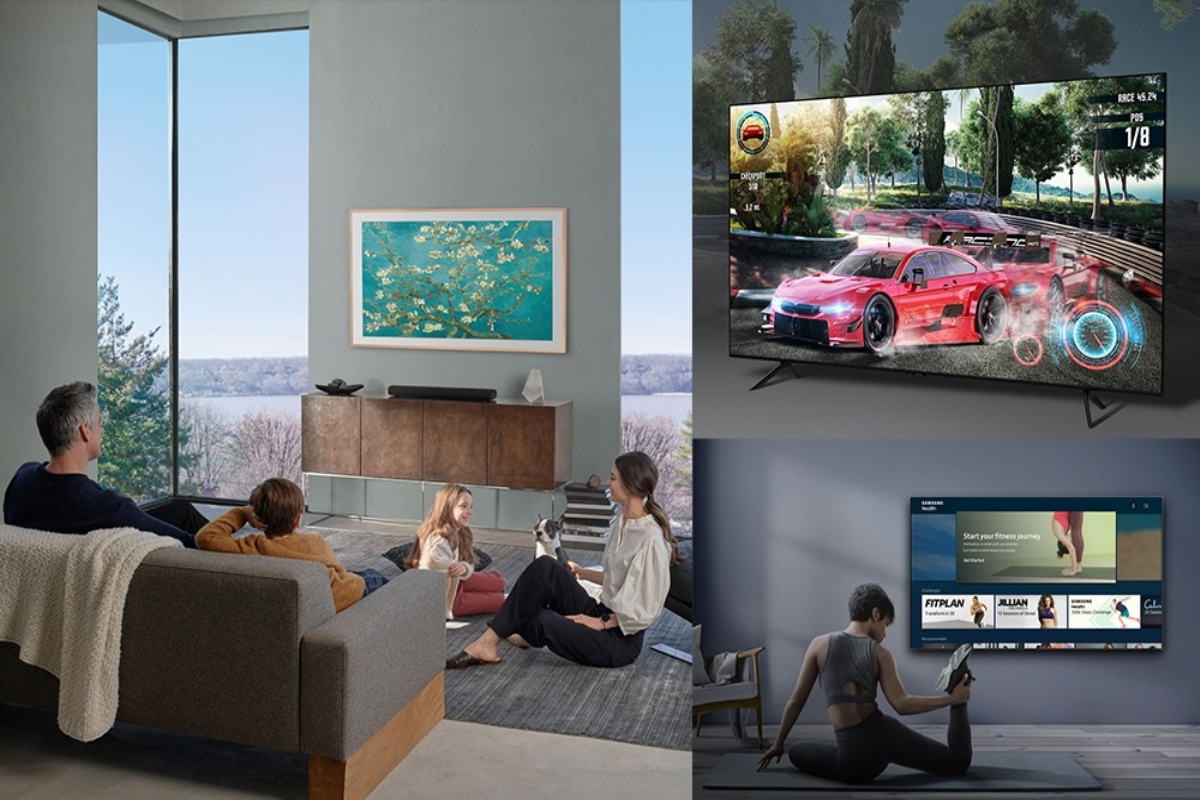
The televisions have become more than just a box in the corner of our living rooms. They’ve evolved into smart devices that bring endless entertainment and connectivity into our homes. And if you thought streaming your favorite shows and movies was impressive, wait until you discover the power of screencasting! Screen casting allows you to seamlessly mirror your smartphone or laptop screen onto your smart TV, opening up a new world of possibilities. Whether it’s sharing memorable vacation photos with friends and family on a larger screen or indulging in an epic gaming session like never before, this technology is here to take your entertainment experience to soaring heights. So, are you ready to unlock the full potential of your smart TV? Get ready as we delve into the exciting realm of screencasting and show you how to cast your screen easily.
How to screencast TV with ease
This opens up a whole new world of possibilities and unlocks the full potential of your entertainment system. If you want to stream videos from YouTube, browse photos from your vacation, or play mobile games on a bigger screen, screencasting makes it all possible.
Connect both devices with the same Wi-Fi network
To begin screen casting, ensure your smart TV and device are connected to the same Wi-Fi network.
Open settings and select screen mirroring on the phone
Then, open the settings menu on your device and select “Screen Mirroring” or “Cast Screen.” Your device will search for available devices to cast to choose your smart TV from the list.
Once connected, anything displayed on your device’s screen will be mirrored onto the TV in real time. You can navigate through apps, scroll through websites, and even interact with content using touch gestures on your device.
Tips for optimizing your screen casting experience
Here are tips that can optimize your screen casting experience:
Check your Wi-Fi signal.
Before you start screencasting, ensure that your smart TV and the device you’re casting from are connected to a stable Wi-Fi network. A weak or unstable connection can lead to buffering issues and interruptions in the streaming.
Clear your device’s cache.
Over time, the cache on your device can become cluttered with unnecessary files, which may affect its performance during screencasting. Regularly clear the cache to free up memory and improve overall speed.
Close unused apps
Running multiple apps in the background while screencasting can drain your device’s resources and impact its ability to cast smoothly. Close any unnecessary apps before initiating the screencasting process.
Update software.
Keeping your smart TV and casting device up-to-date with the latest firmware, software versions is essential for optimal performance. Updates often include bug fixes, new features, and improved compatibility.
Reduce interference
Other electronic devices near your TV or router could interfere with Wi-Fi signals, leading to a weaker connection during screen casting. Keep these devices away from each other, or consider using Ethernet cables.
Choose compatible apps
Not all applications support screen casting functionality equally well; some may have limitations or offer better quality than others regarding this feature. Experiment with different apps to find those that work best for you.
Adjust display settings
Smart TVs usually provide various display options such as aspect ratio, resolution, brightness, and color settings that can enhance your viewing experience while screencasting content onto a larger screen.
Use an HDMI cable (optional)
While wireless technology has made great strides in recent years, using an HDMI cable instead of relying solely on wireless connections can provide a more reliable streaming experience without potential lag or connectivity issues.
Turn off notifications
To avoid distractions while enjoying the content on your big screen through screencasting, it’s a good idea to turn off notifications on your device.
Conclusion
Smart TVs have become powerful entertainment hubs that can do so much more than play cable or streaming services. By learning how to cast screen to tv with ease, you can unlock the full potential of your smart TV and take your viewing experience to new heights.